On Linux, OneDrive cannot be downloaded and synchronized as seamlessly as it is in a Windows environment. Today, I will provide a step-by-step guide on how to install and sync OneDrive on your Linux PC.
1) Set up a new remote connection.
First, let’s open the terminal using the shortcut Ctrl + Alt + T
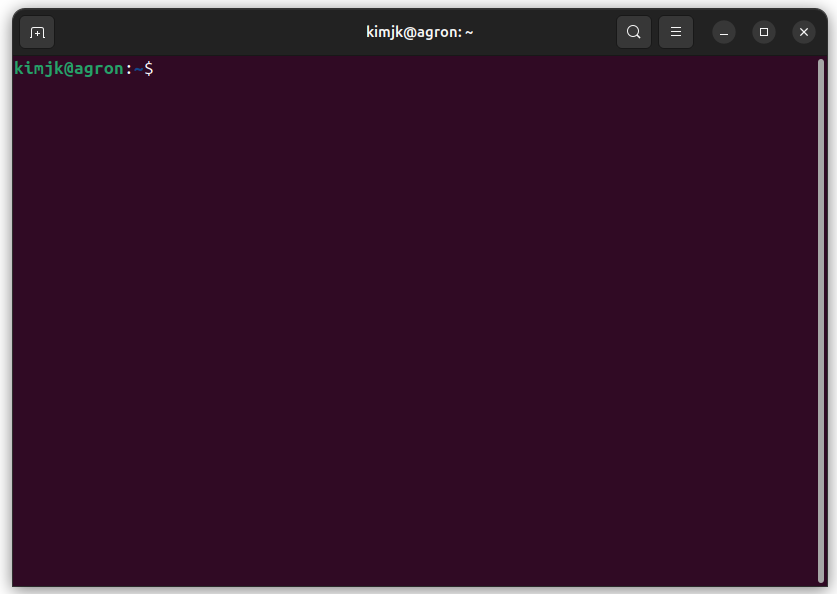
and type rclone config
kimjk@agron:~$ rclone config

Current remotes:
e) Edit existing remote
n) New remote
d) Delete remote
r) Rename remote
c) Copy remote
s) Set configuration password
q) Quit config
e/n/d/r/c/s/q>
Once the output appears, type n for a ‘New remote’ connection.
Next, you’ll need to name your new remote. For this guide, I’ll use onedrive. If you want to add Box or Google Drive, I recommend naming them box or gdrive.
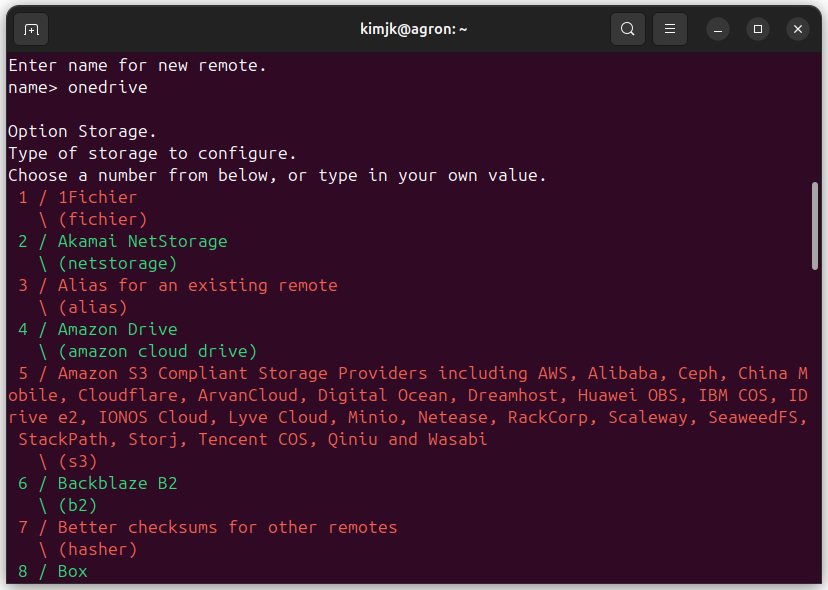
Scroll down the list to find OneDrive. Enter its associated number (30 in this example) and press Enter. For Box, use 9, and for Google Drive, use 18.
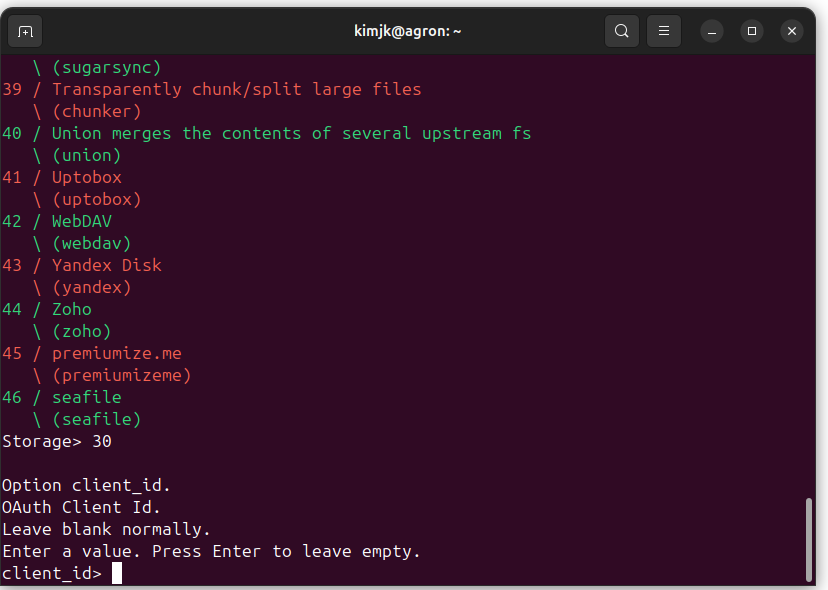
Keep pressing Enter through the next prompts until the following message appears.
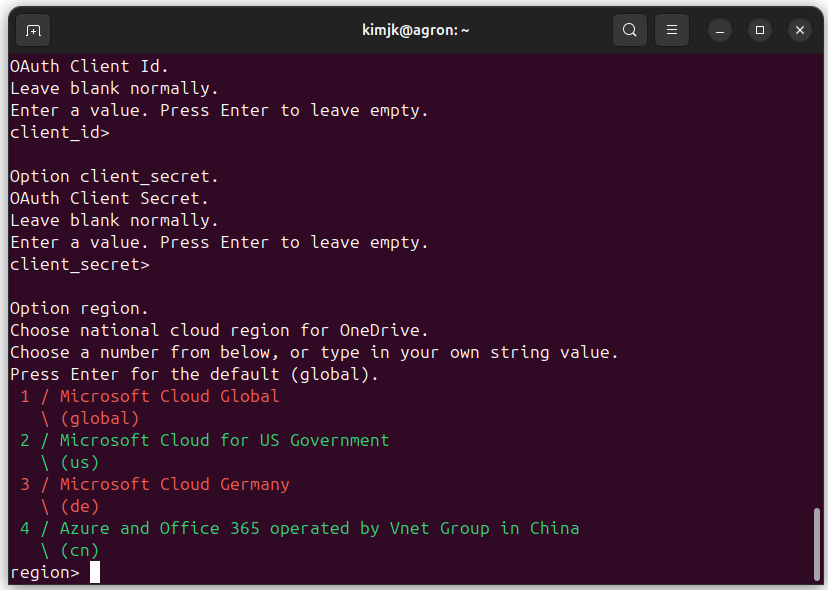
Now, choose your region. I will select 1 for the global Microsoft Cloud.
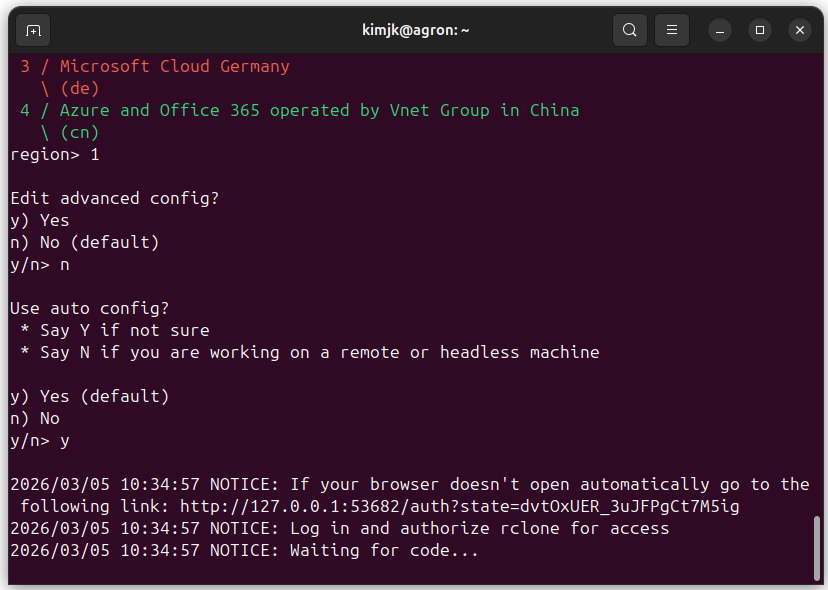
Continue selecting the default options by pressing Enter until you reach the next section. Then, log in to your OneDrive account to connect your cloud.
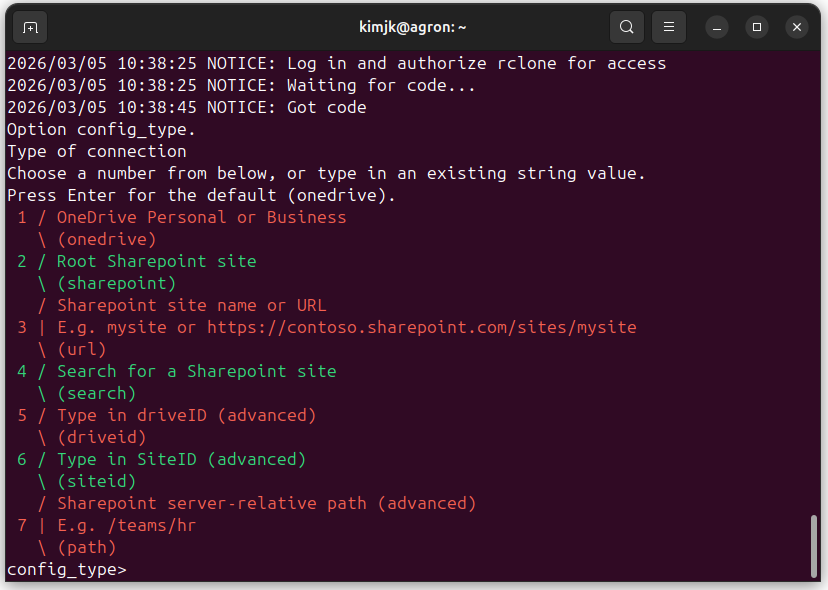
When the prompt above appears, select 1 for ‘OneDrive Personal or Business’.
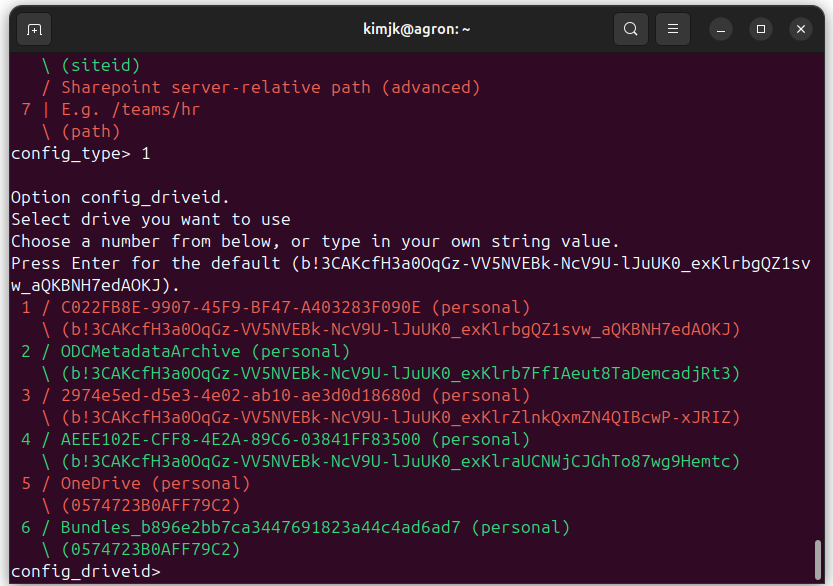
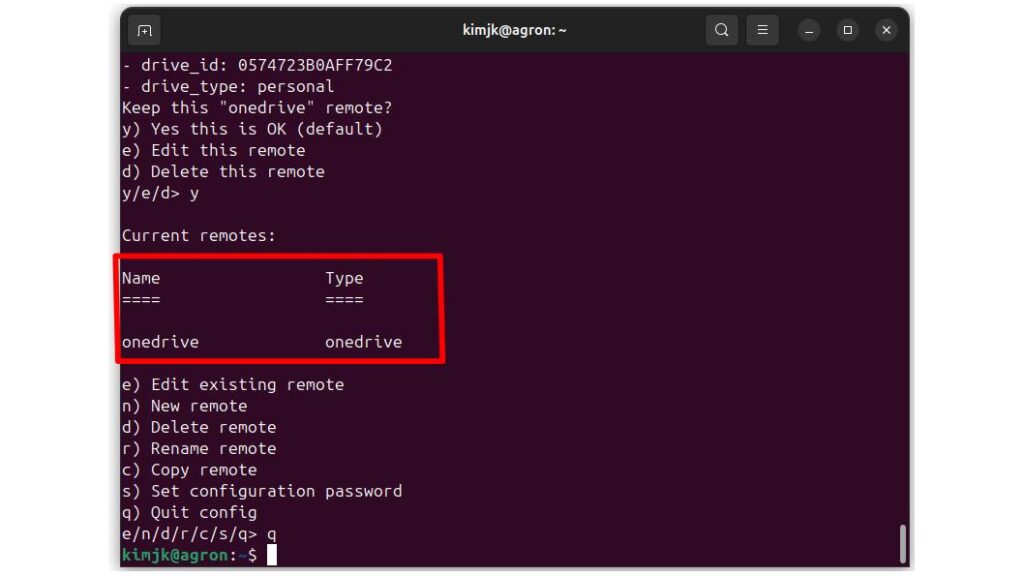
At this prompt, select 5 for ‘OneDrive (personal)’. Then, continue pressing Enter to accept the default options. You will soon see a message confirming that OneDrive is connected as a remote.
2) Create local OneDrive folder in PC
The next step is to create a local OneDrive folder on your Linux PC where your files will be stored. First, let’s create a folder called ‘OneDrive’.
One Drive
mkdir -p ~/OneDrive

Box
mkdir -p ~/Box
3) Create a Systemd User Service for Rclone Mount
Please type the below code to the terminal.
cat <<EOF > ~/.config/systemd/user/rclone-onedrive.service
[Unit]
Description=Rclone OneDrive Mount
After=network-online.target

[Service]
Type=simple
ExecStart=$(which rclone) mount <mark style="background-color:rgba(0, 0, 0, 0)" class="has-inline-color has-vivid-red-color">onedrive</mark>: %h/<mark style="background-color:rgba(0, 0, 0, 0)" class="has-inline-color has-vivid-cyan-blue-color">OneDrive</mark> --vfs-cache-mode writes
ExecStop=/bin/fusermount -u %h/OneDrive
Restart=on-failure
RestartSec=10

[Install]
WantedBy=default.target
EOF

<strong>#Box [I set up <mark style="background-color:rgba(0, 0, 0, 0)" class="has-inline-color has-vivid-red-color">box</mark> at rclone config, and <mark style="background-color:rgba(0, 0, 0, 0)" class="has-inline-color has-vivid-cyan-blue-color">Box</mark> at mkdir -p ~/Box</strong>
cat <<EOF > ~/.config/systemd/user/rclone-<mark style="background-color:rgba(0, 0, 0, 0)" class="has-inline-color has-vivid-red-color">box</mark>.service
[Unit]
Description=Rclone <mark style="background-color:rgba(0, 0, 0, 0)" class="has-inline-color has-vivid-cyan-blue-color">Box</mark> Mount
After=network-online.target

[Service]
Type=simple
ExecStart=$(which rclone) mount <mark style="background-color:rgba(0, 0, 0, 0)" class="has-inline-color has-vivid-red-color">box</mark>: %h/<mark style="background-color:rgba(0, 0, 0, 0)" class="has-inline-color has-vivid-cyan-blue-color">Box</mark> --vfs-cache-mode writes
ExecStop=/bin/fusermount -u %h/<mark style="background-color:rgba(0, 0, 0, 0)" class="has-inline-color has-vivid-cyan-blue-color">Box</mark>
Restart=on-failure
RestartSec=10

[Install]
WantedBy=default.target
EOF
4) Enable and Start the Rclone Service
Please type the following code.
systemctl --user daemon-reload
systemctl --user enable rclone-onedrive.service
systemctl --user start rclone-onedrive.service
To avoid typing errors, I recommend copying and pasting this single-line command.
systemctl --user daemon-reload && systemctl --user enable rclone-onedrive.service && systemctl --user start rclone-onedrive.service
# Box
systemctl --user daemon-reload && systemctl --user enable rclone-<mark style="background-color:rgba(0, 0, 0, 0)" class="has-inline-color has-vivid-red-color">box</mark>.service && systemctl --user start rclone-<mark style="background-color:rgba(0, 0, 0, 0)" class="has-inline-color has-vivid-red-color">box</mark>.service
5) Verify the Mount Status
Run the command below to verify the connection.”
# One Drive
systemctl --user status rclone-onedrive.service

# Box
systemctl --user status rclone-<mark style="background-color:rgba(0, 0, 0, 0)" class="has-inline-color has-vivid-red-color">box</mark>.service
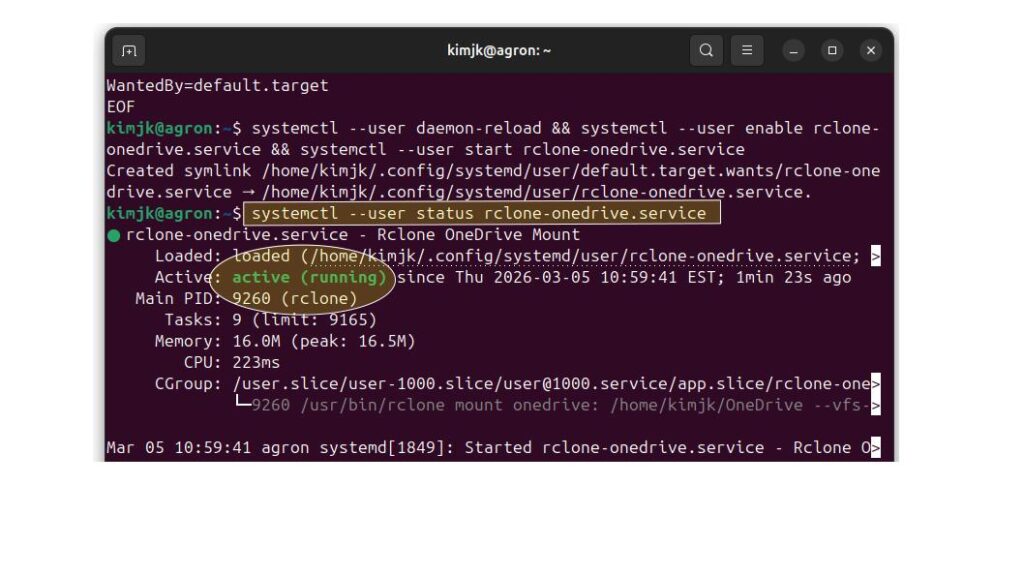
If you see ‘active (running)’ in the message below, your local OneDrive (or Box) folders have successfully synced with the Cloud.

We aim to develop open-source code for agronomy ([email protected])
© 2022 – 2025 https://agronomy4future.com – All Rights Reserved.
Last Updated: 03/05/2026