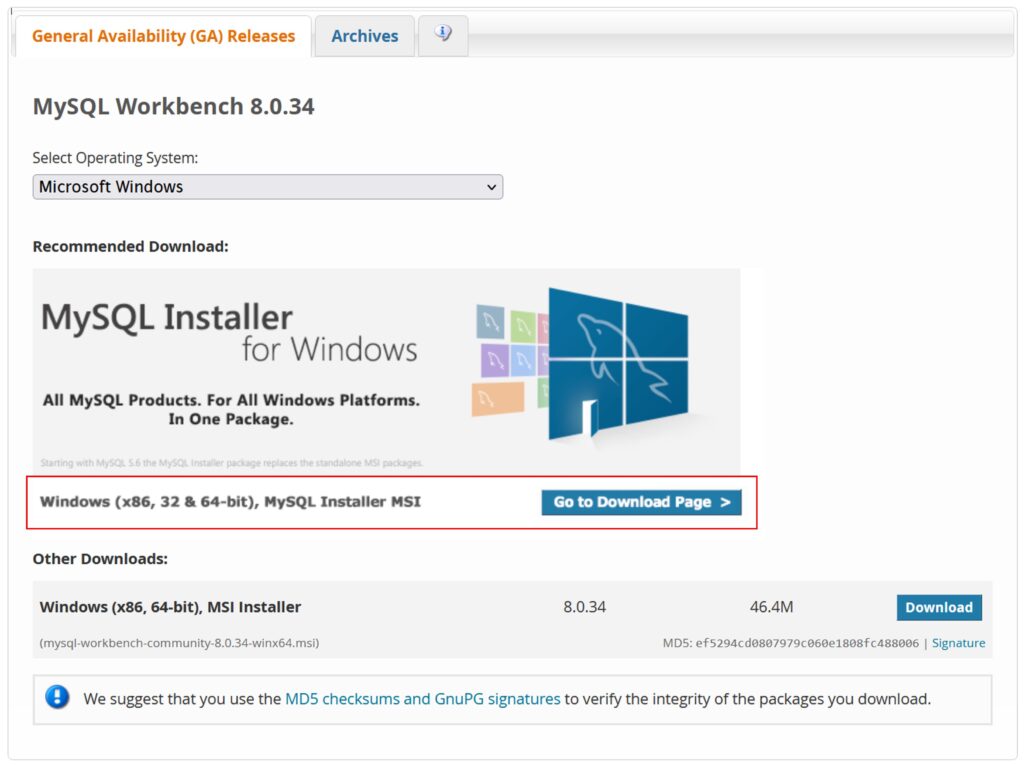
This is the process to install MySQL Workbench on your PC. First, please go to the link and download the latest version of MySQL.
https://dev.mysql.com/downloads/workbench/
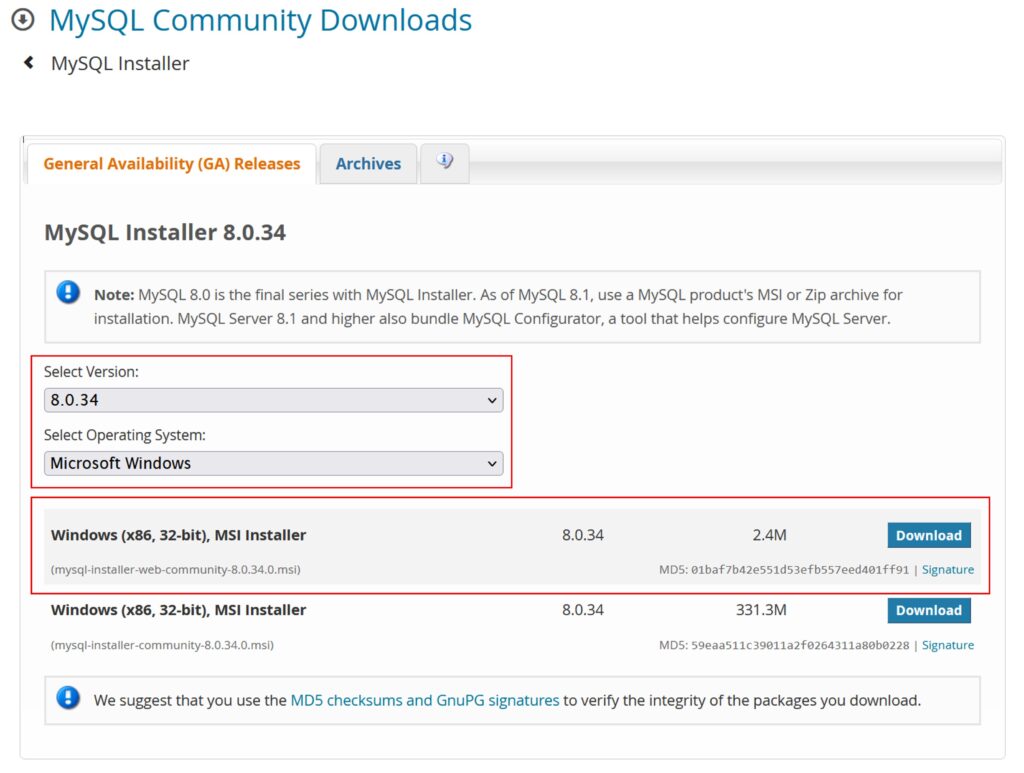
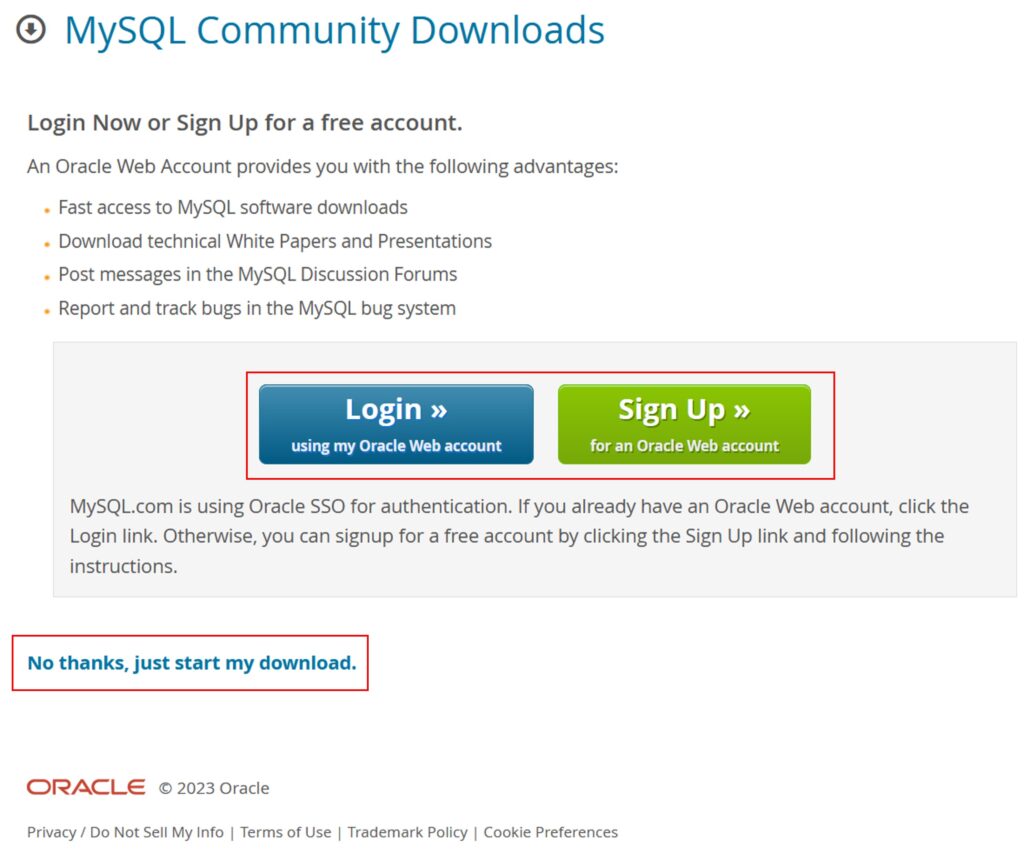
The next page will ask you to log in to your Oracle web account or sign up, or you can choose to skip this step and start the download. The choice is yours.
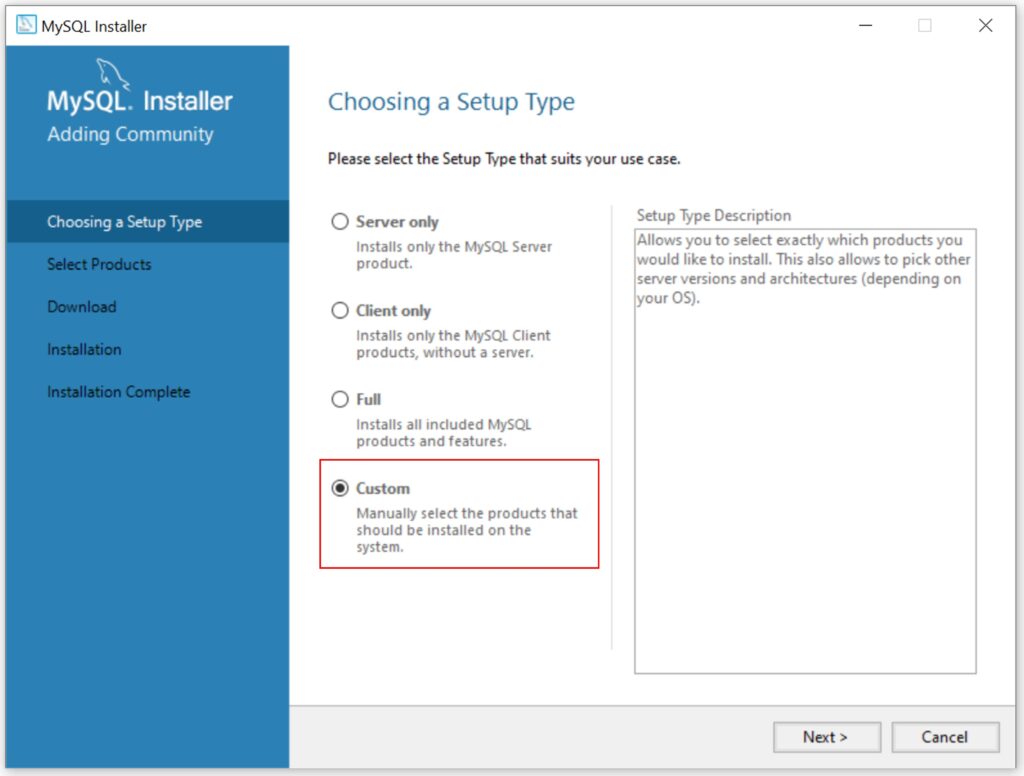
You need to choose a Setup Type, and I’ll choose Custom.
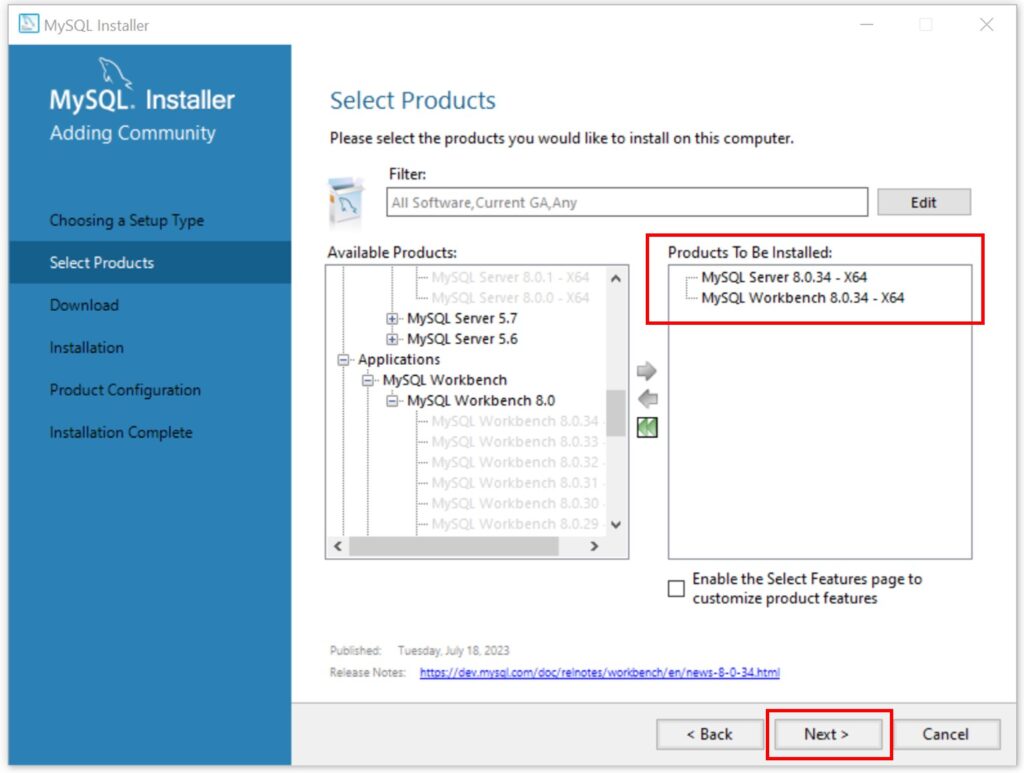
Next choose the latest both MySQL Server and MySQL Workbench
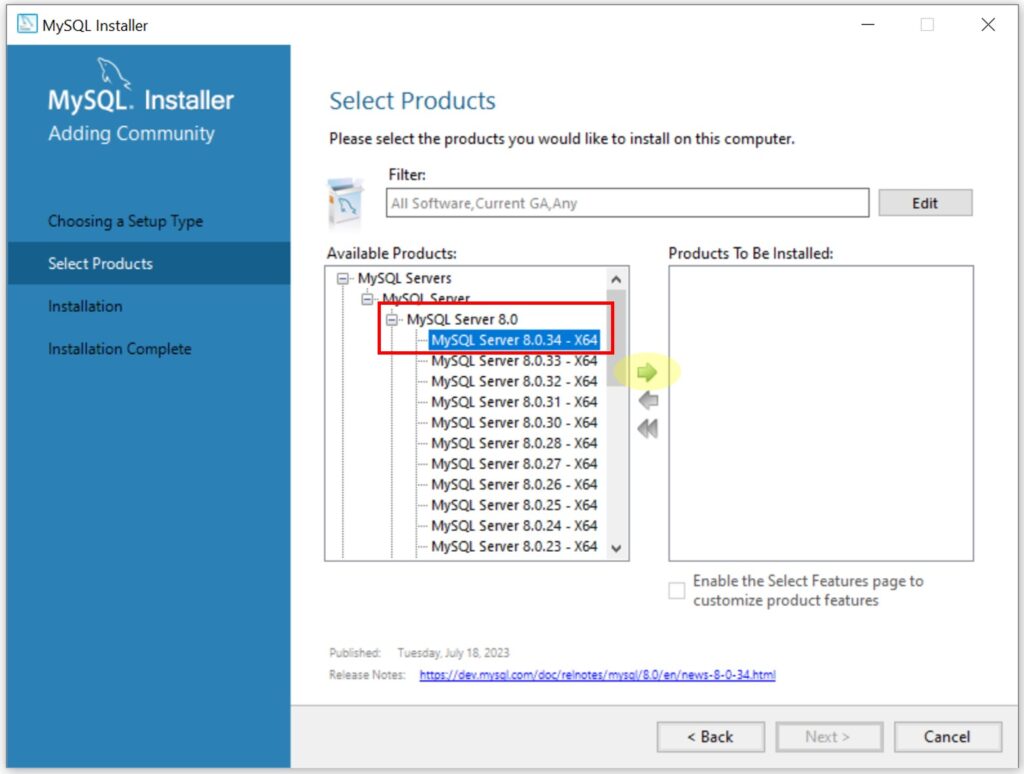
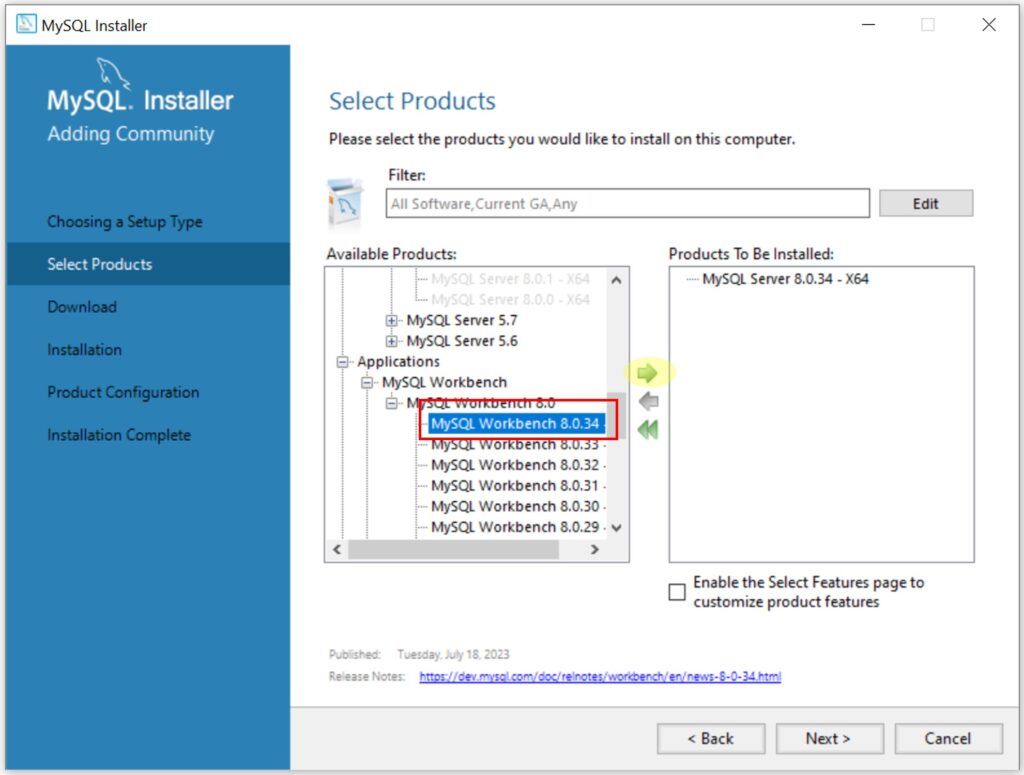

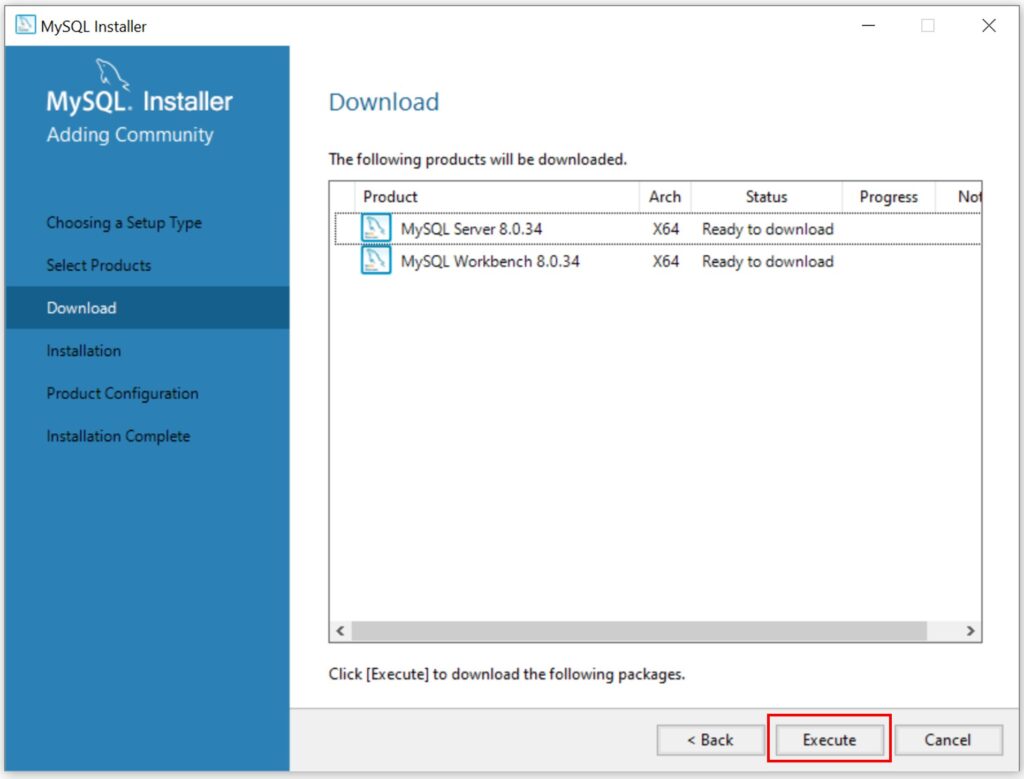
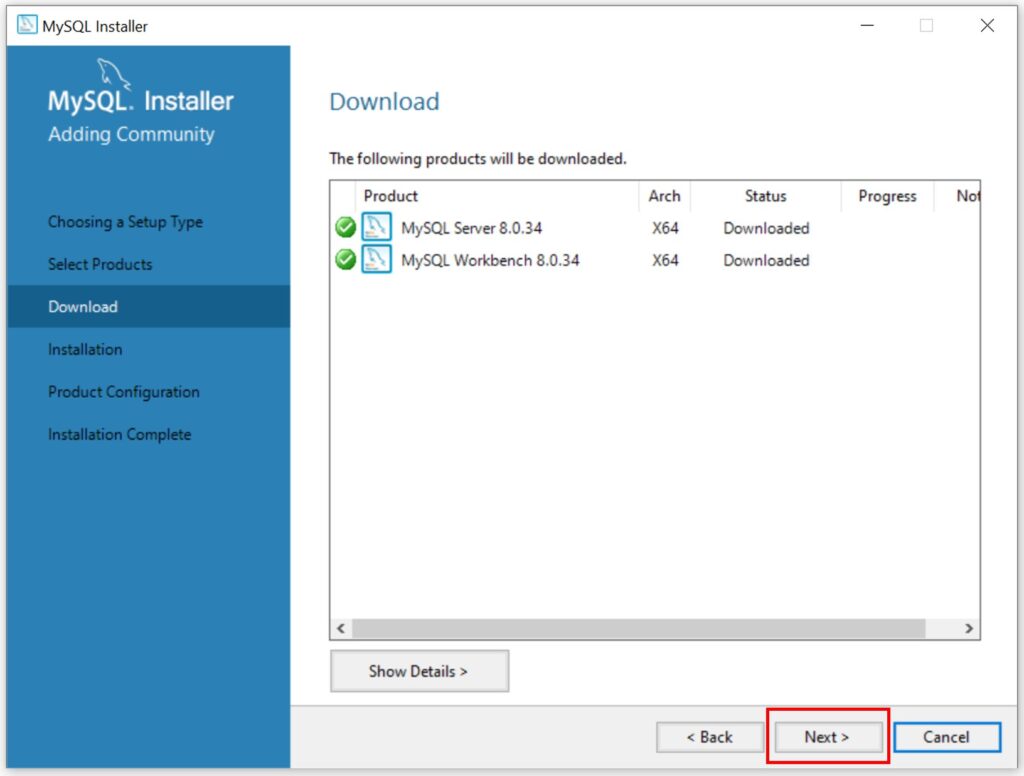
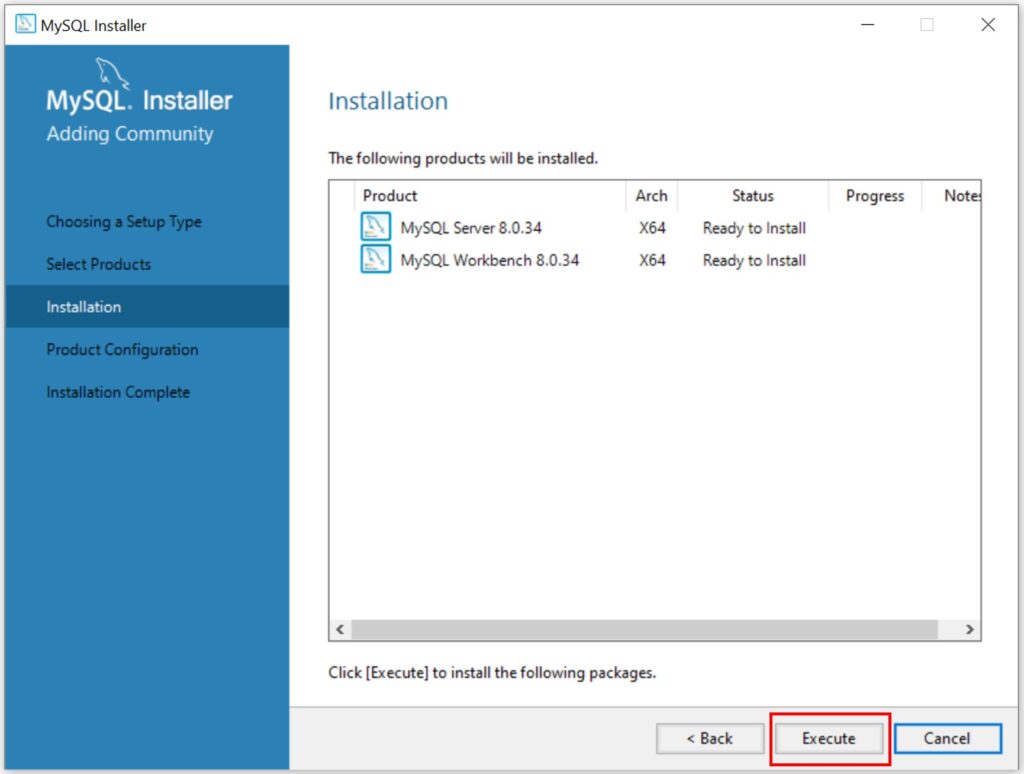
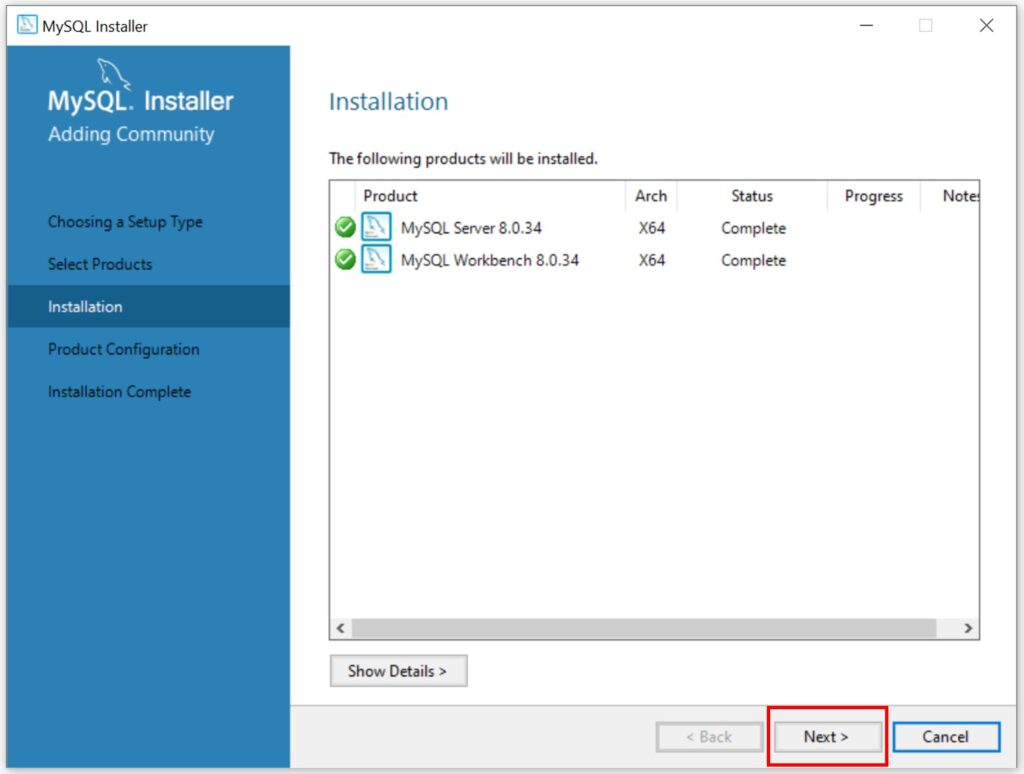
From now on, you can select the default settings for each step. Simply click ‘Next’ to proceed.
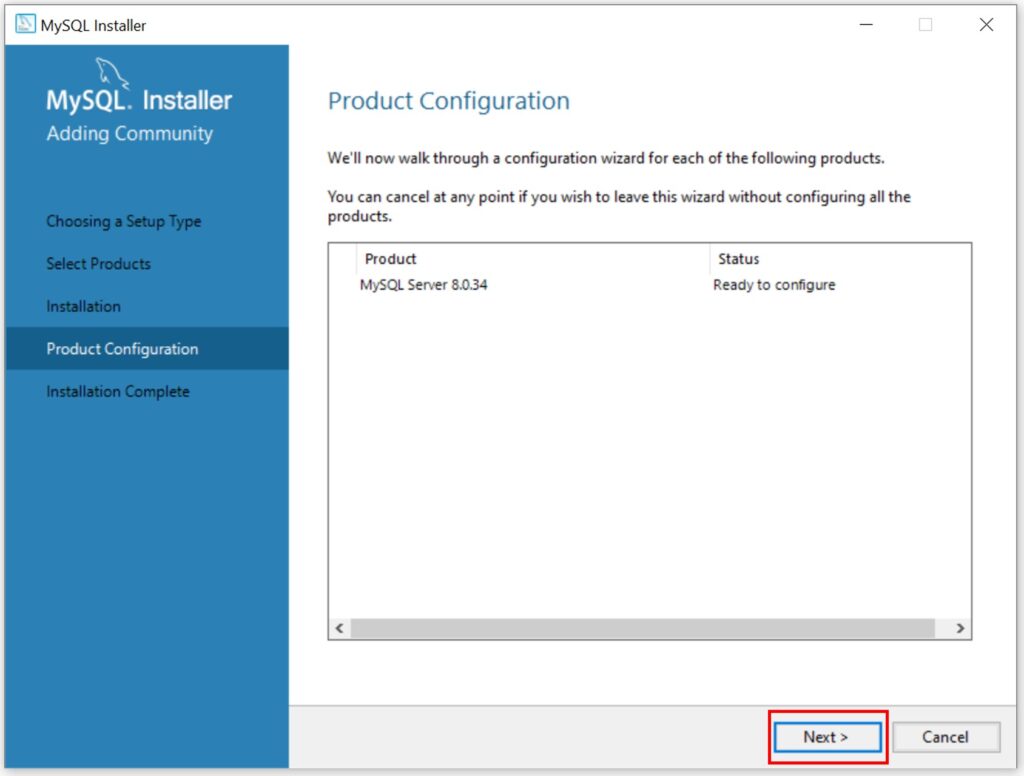
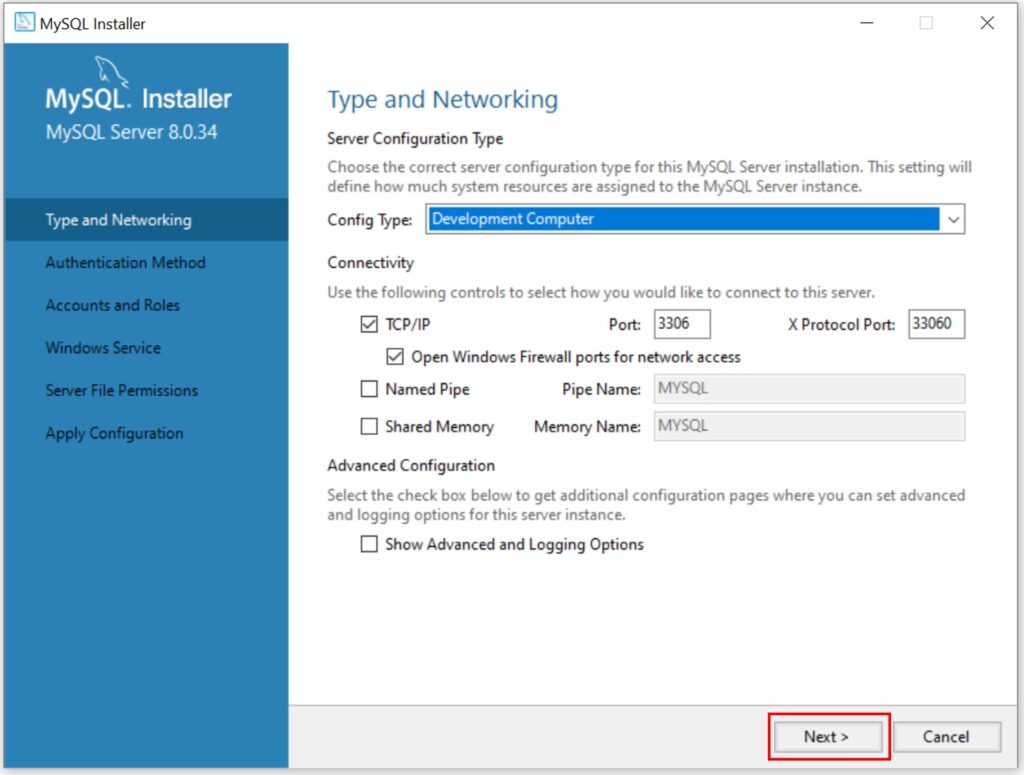
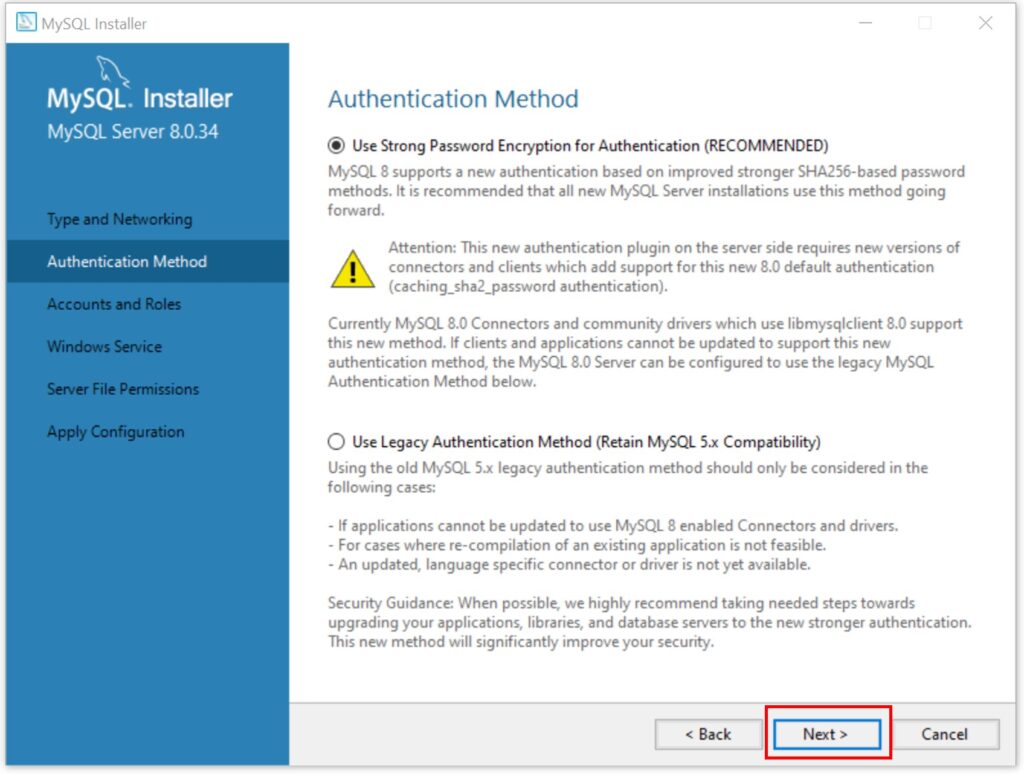
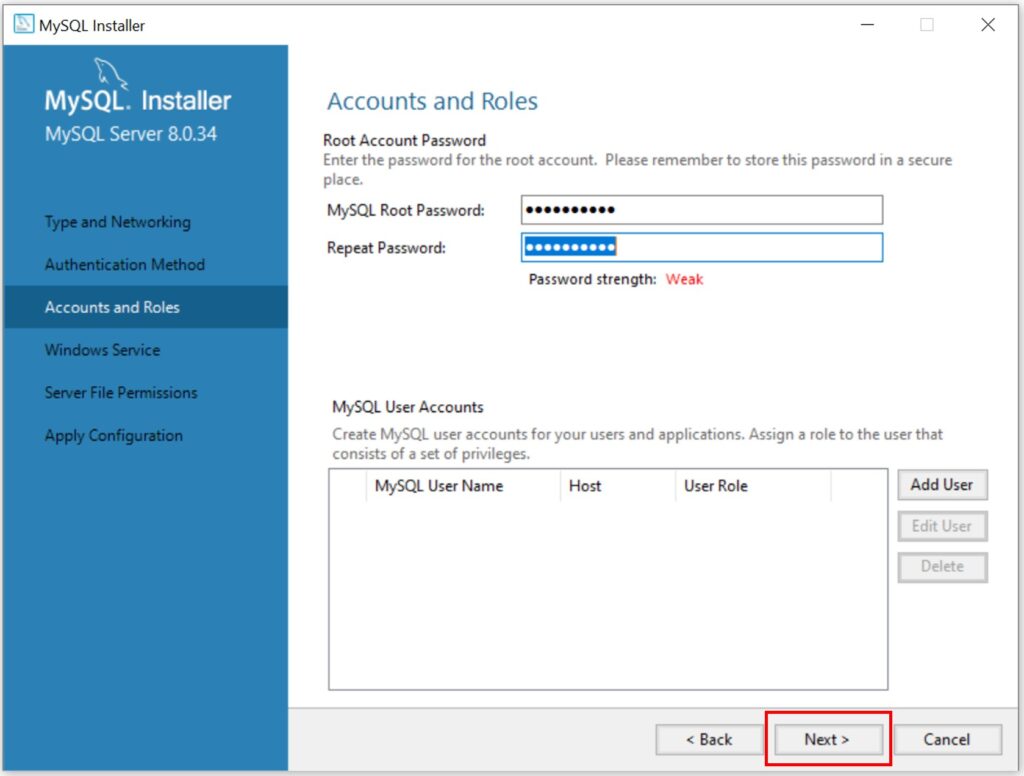
Choose your own password and Windows Service Name.
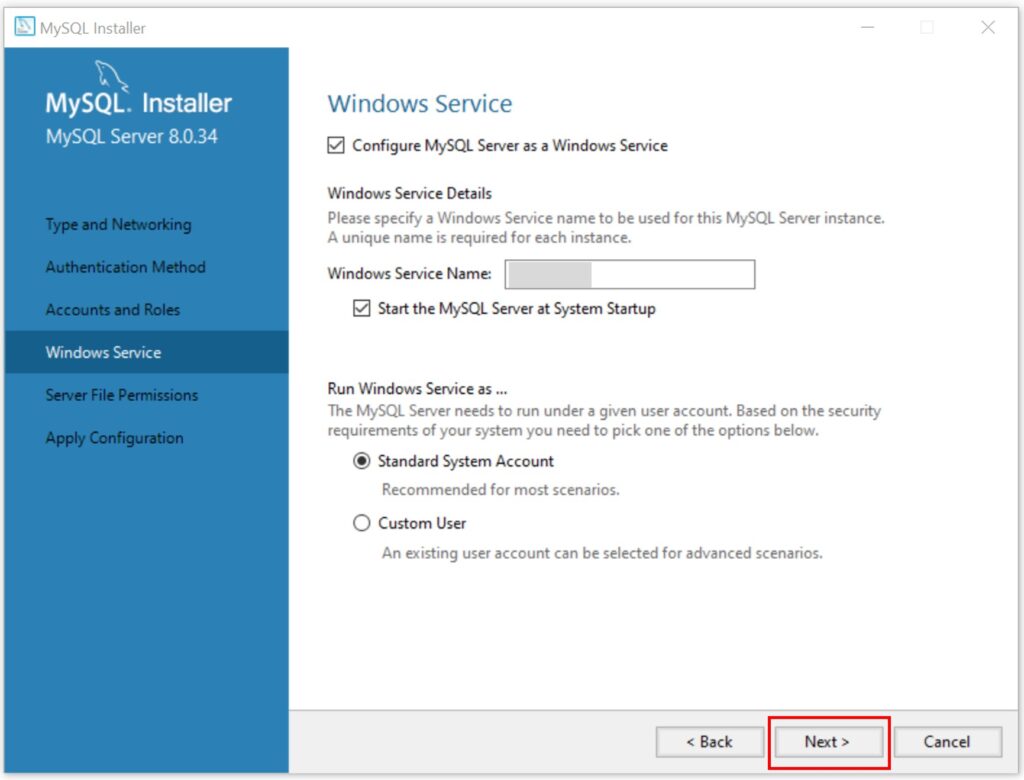
Again, you can select the default settings for each step. Simply click ‘Next’ to proceed.
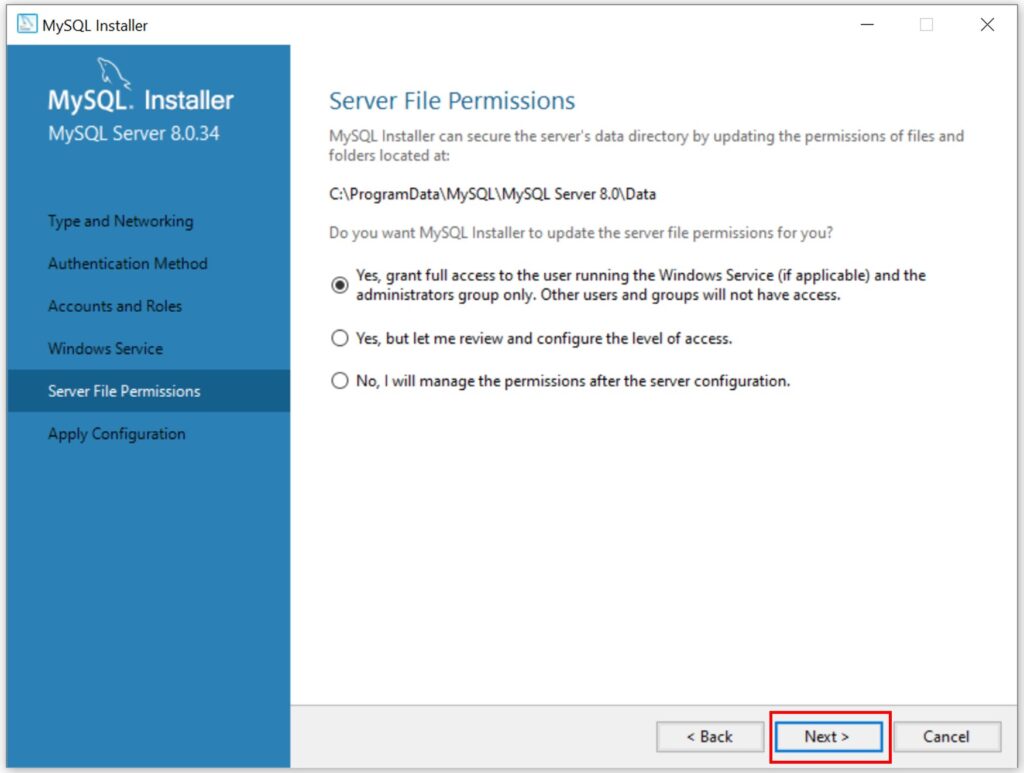
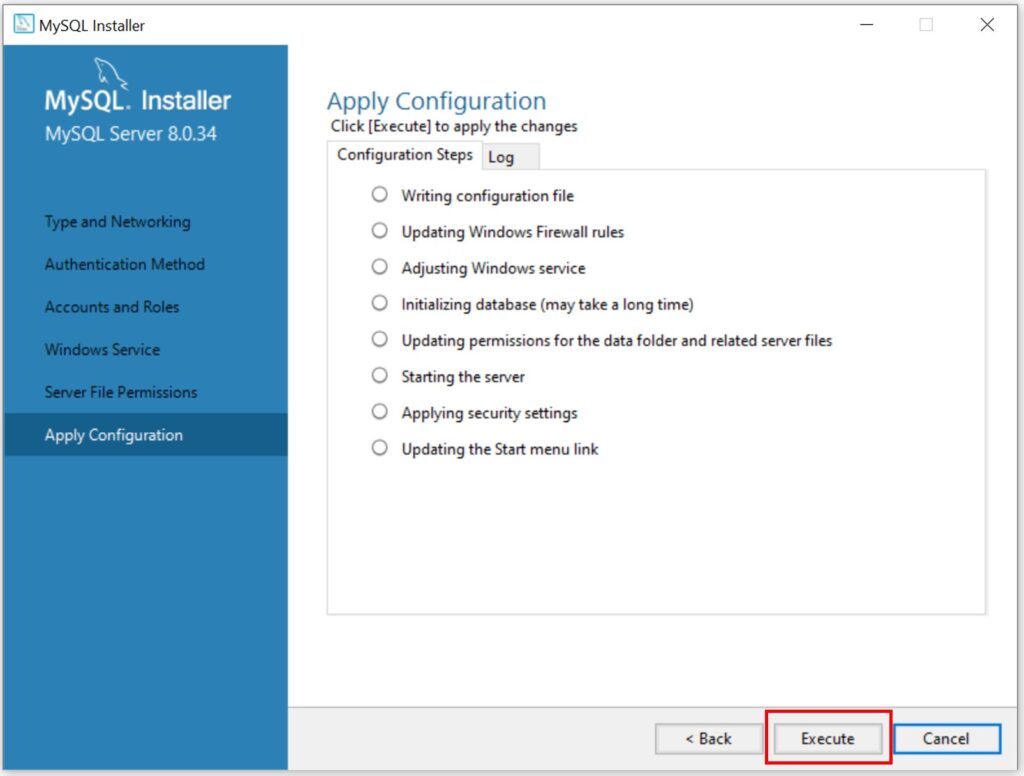
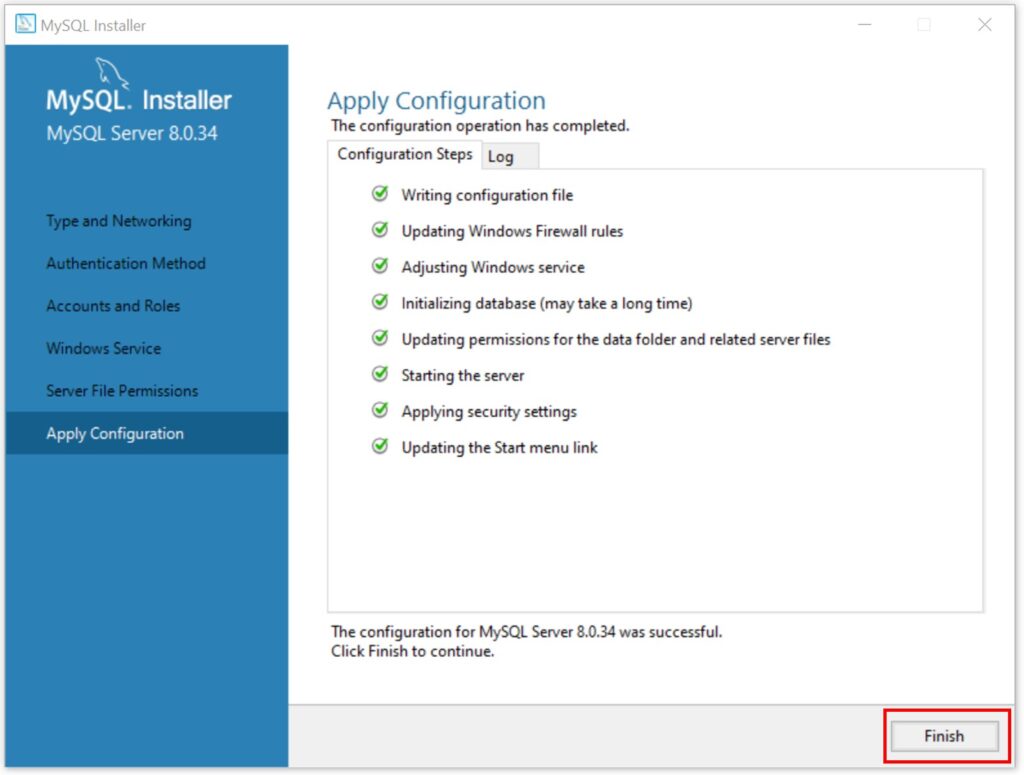
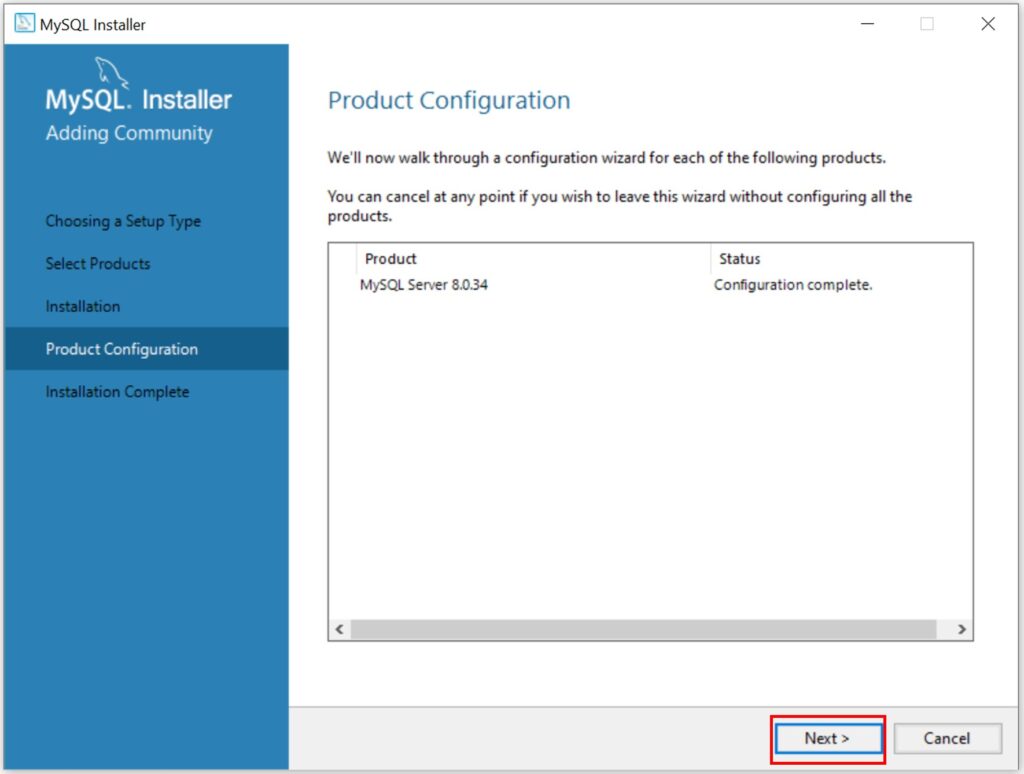
You have successfully completed the setup of MySQL on your PC.
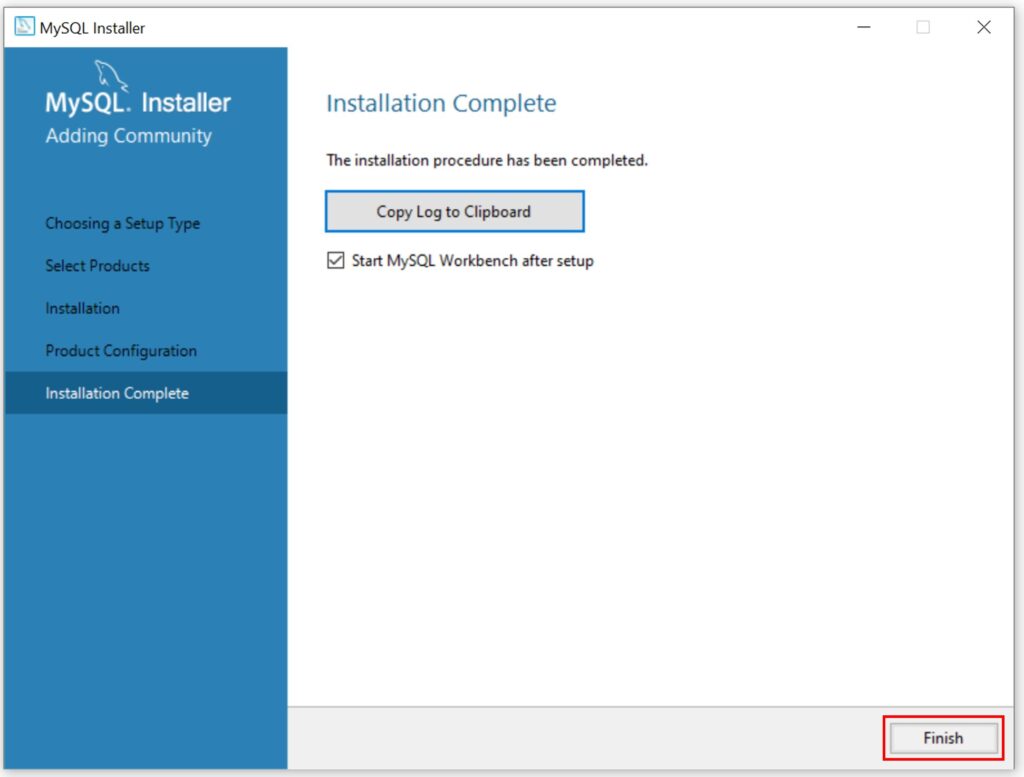
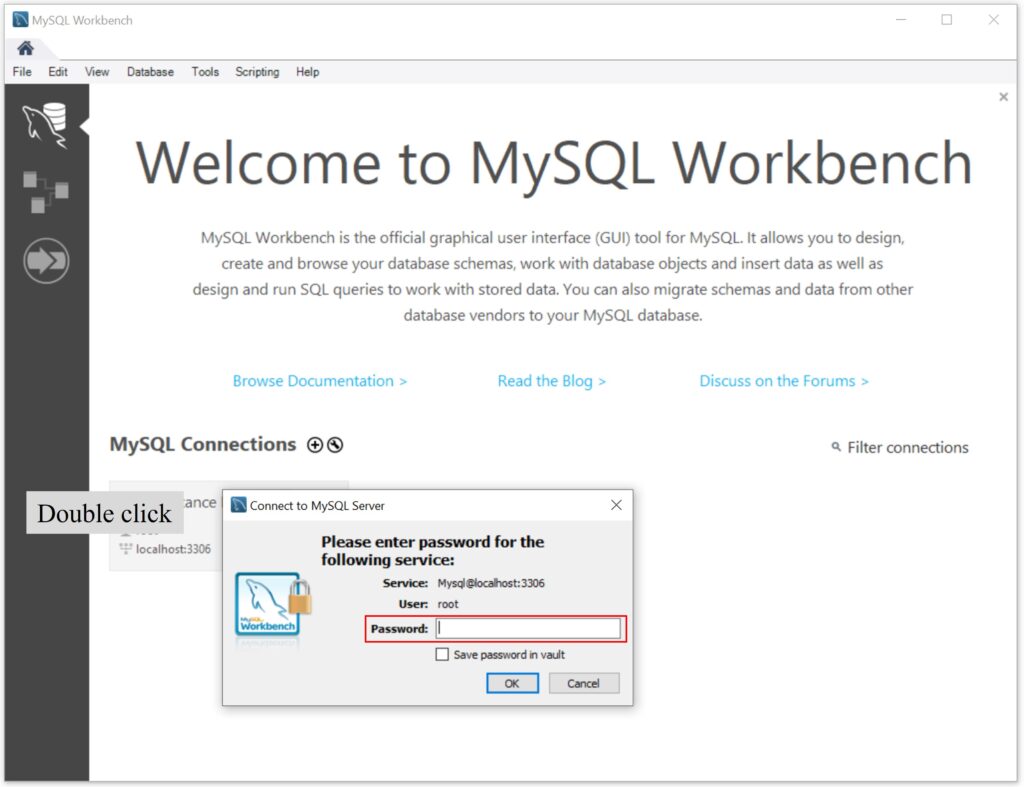
When MySQL Workbench is launched, you will see the window below. Double-click the button, and then enter the password you previously set up.
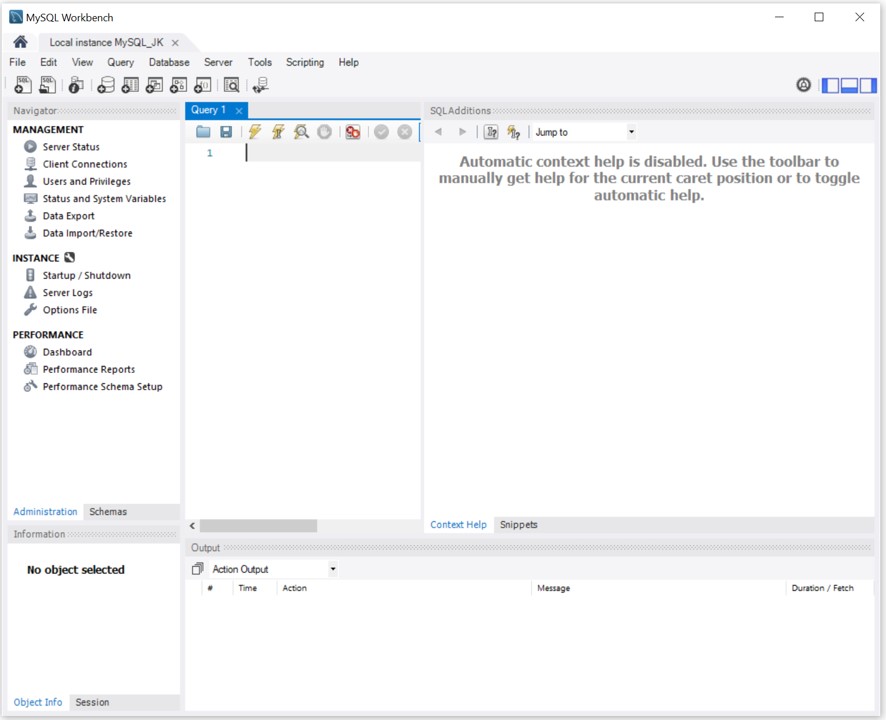
Look!!! MySQL Workbench is started.

We aim to develop open-source code for agronomy ([email protected])
© 2022 – 2025 https://agronomy4future.com – All Rights Reserved.
Last Updated: 03/11/2023